Discord (App)
This scrobbler uses Now Playing functionality to set your Discord Rich Presence to the music you are currently monitoring with multi-scrobbler.
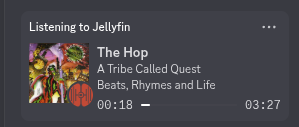
This integration uses an existing Discord application to set your Rich Presence.
Check the main Discord docs page for a comparison between App and Headless.
Required Setup
Discord Application
You must create a Discord App in order to use this integration. Creating an App is free and simple.
Go to the Discord Developer Portal
- Click on "New Application" and give it a name
- Copy the Application Id (Client Id) shown after creation
- Add this Id to your Multi-Scrobbler config
- Env Config =>
DISCORD_APPLICATION_ID=12345678 - File Config =>
"applicationId": "12345678"
- Env Config =>
Discord Connection
This integration uses an existing, running Discord application to communicate with Discord and set Rich Presence. Multi-scrobbler must be able to communicate with the Discord application, either by being on the same machine or over a network.
- Containerized Discord
- Native Discord
Kasm Workspaces provides a self-hostable Discord container image. This image provides a desktop-like experience, through browser-based VNC, to use the official Discord application.
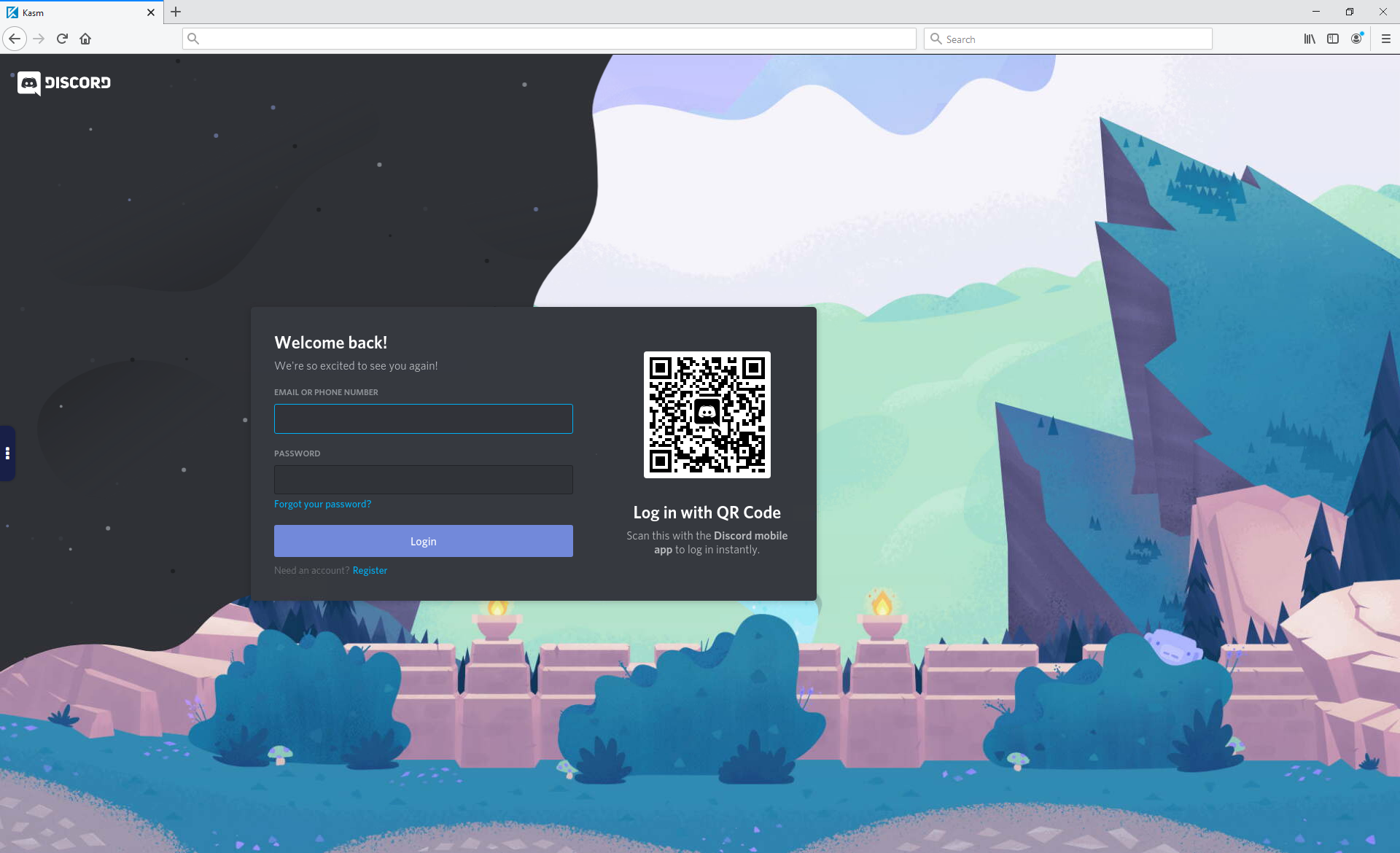
This containerized approach can be used instead of configuring MS to use a Native Discord application on a specific machine.
Advantages
- Setup is much simpler
- Discord runs in the same stack as multi-scrobbler
- Configuration is copy-paste. Skip all of the Discord Connection instructions.
- Get a Headless-like experience without needing to break Discord TOS
Disadvantages
- Image only available for x86 arch
- Image and container are large (1GB+)
- Discord does not notify other clients of notifications in a channel if any client is viewing that channel.
- To avoid this, make sure your container discord instance is not viewing any server/channel/dm.
- Sometimes, Discord does not deliver "notifications you missed" to mobile because this depends on all clients being offline.
Setup
Setup is basically the same as using the instructions for Discord on Linux with MS on Same Host (Docker).
1. Add Discord Service to Multi-Scrobbler Docker Compose Stack
Detailed Explanation
- Add the
kasmweb/discordservice to your compose stack- Mount the directory containing Discord's unix socket to a named volume
- Configure MS to use Discord's unix socket
- Mount the unix socket volume into MS's container
- Add ENV
DISCORD_IPC_LOCATIONSto point to the mounted volume
Use this example docker-compose.yaml to modify your existing multi-scrobbler docker-compose.yaml:
Example
services:
  multi-scrobbler:
    image: foxxmd/multi-scrobbler:latest
    environment:
      # ...
      - DISCORD_APPLICATION_ID=12345678
      # add below line
      - DISCORD_IPC_LOCATIONS=/run/discord-ipc-0
    volumes:
      # ...
      # add below line
      - kasm_run:/run
    # ...

  # .. add discord service below
  kasmcord:
    container_name: kasmcord
    image: kasmweb/discord:1.19.0
    ports:
      # VNC port to use in web browser
      - 6901:6901
    shm_size: 512m
    environment:
      # set a password for VNC access
      VNC_PW: hunter2
      XDG_RUNTIME_DIR: /run/user/1000
    volumes:
      - kasm_run:/run/user/1000
      - kasm_config:/home/kasm-user/.config
    user: "0"
    entrypoint: >
      sh -c "chmod 700 /run/user/1000 &&
      chown -R kasm-user:kasm-user /run/user/1000 &&
      chown -R kasm-user:kasm-user /home/kasm-user/.config &&
      sed -i 's|/usr/share/discord/Discord|/usr/bin/discord|g' /dockerstartup/custom_startup.sh &&
      su kasm-user -c '/dockerstartup/kasm_default_profile.sh /dockerstartup/vnc_startup.sh /dockerstartup/kasm_startup.sh'"

volumes:
  kasm_run:
    name: kasm_run
  kasm_config:
    name: kasm_config
Then re-deploy your stack.
2. Login to Discord
Navigate in your browser to the IP/host Multi-Scrobbler/Discord are running on. Use the port set in the kasmcord service:
# basic auth login
# user: kasm_user
# pass is what was set in env VNC_PW
https://192.168.MY.HOST:6901
Login to Discord normally. After login is complete MS should connect automatically when a Now Playing event happens. If it does not or reports authentication failure then restart MS (but not Discord).
If MS works then you are done and can move on to Optional Setup.
Use this method if you want to connect MS to Discord running on a physical desktop.
Local MS Installation Requires No Config
If MS was installed locally (not Docker) on the same machine as the Discord application then MS should automatically detect the correct method and use it without any configuration from you. This will work for any OS.
If MS cannot determine this automatically, follow the steps for your OS below.
Follow the sections below to configure MS for your specific environment.
Find IPC Connection
Discord uses OS-specific methods to communicate with other applications on the same host, called IPC. You may need to determine some details about the IPC method in order for MS to communicate with it correctly.
- Discord on Linux
- Discord on MacOS
- Discord on Windows
On Linux, Discord uses a Unix Socket for IPC.
With Discord running, run this command:
$ sudo netstat -apeen | grep discord

unix  2      [ ACC ]     STREAM     LISTENING     11026149 1641787/Discord      /home/foxx/.var/app/com.discordapp.Discord/cache/scoped_dirnnxNIn/SingletonSocket
unix  2      [ ACC ]     STREAM     LISTENING     11036791 1642030/exe          /run/user/1000/discord-ipc-0
We see that the path we need is:
/run/user/1000/discord-ipc-0
On MacOS, Discord uses a Unix Socket for IPC.
With Discord running, run this command:
$ sudo netstat -apeen | grep discord

unix  2      [ ACC ]     STREAM     LISTENING     11026149 1641787/Discord      /home/foxx/.var/app/com.discordapp.Discord/cache/scoped_dirnnxNIn/SingletonSocket
unix  2      [ ACC ]     STREAM     LISTENING     11036791 1642030/exe          /run/user/1000/discord-ipc-0
We see that the path we need is:
/run/user/1000/discord-ipc-0
Windows uses Named Pipes for IPC. These aren't easily iteratable without external software, like Pipetap.
The syntax for a named pipe is like this:
\\.\pipe\app_named_pipe_foo
and Discord's names follow this pattern:
\\.\pipe\discord-ipc-0
Where 0 increments for each different instance of Discord (official, canary, nightly, etc...).
The default Discord pipe name is: discord-ipc-0
Pass IPC to Multi-Scrobbler
After finding your IPC connection path you will need to make it accessible to Multi-Scrobbler.
- Discord on Linux
- Discord on MacOS
- Discord on Windows
- MS on Different Host
- MS on Same Host (Docker)
- MS on Same Host (Non-Docker)
Insecure Communication
This method of exposing Discord IPC is not secure. There is no authentication used for the traffic relayed to/from the opened TCP port.
You should only use this method if you trust the network your machine is on. Additionally:
- Do use a firewall to limit source (IP) of incoming traffic to this TCP port
- Do not expose this port to the public internet
Use socat to bidirectionally relay communication from Discord's unix socket to a listening TCP port on the same host. Likely, you will want to setup a service to start this command on login.
$ socat -v TCP-LISTEN:6655,reuseaddr,fork UNIX-CONNECT:/run/user/1000/discord-ipc-0
In your MS docker compose file add the host:port of the host running Discord/socat to DISCORD_IPC_LOCATIONS environment:
    environment:
      # ...
      DISCORD_IPC_LOCATIONS=192.168.DISCORD_HOST.IP:6655
In your MS docker compose file, pass the path of Discord's unix socket as a volume and add this path to DISCORD_IPC_LOCATIONS in environment:
    environment:
      # ...
      DISCORD_IPC_LOCATIONS=/run/discord-ipc-0
    volumes:
      - /run/user/1000/discord-ipc-0:/run/discord-ipc-0
No configuration is required. If MS does not automatically work for you then try the MS on Same Host (Docker) method using the DISCORD_IPC_LOCATIONS environment variable.
- MS on Different Host
- MS on Same Host (Docker)
- MS on Same Host (Non-Docker)
Insecure Communication
This method of exposing Discord IPC is not secure. There is no authentication used for the traffic relayed to/from the opened TCP port.
You should only use this method if you trust the network your machine is on. Additionally:
- Do use a firewall to limit source (IP) of incoming traffic to this TCP port
- Do not expose this port to the public internet
Use one of the methods below to setup socat on your macOS machine.
socat installed natively
Install socat using homebrew to use it as a native command on your host.
Then, use socat to bidirectionally relay communication from Discord's unix socket to a listening TCP port on the same host. Likely, you will want to setup a service to start this command on login.
$ socat -v TCP-LISTEN:6655,reuseaddr,fork UNIX-CONNECT:/run/user/1000/discord-ipc-0
socat in Docker
Use the socat container in combination with the Discord unix socket found earlier:
services:
  socat:
    image: alpine/socat
    ports:
      - "6655:6655"
    volumes:
      - /run/user/1000/discord-ipc-0:/run/discord-ipc-0
    command:
      - '-v'
      - 'TCP-LISTEN:6655,reuseaddr,fork'
      - 'UNIX-CONNECT:/run/discord-ipc-0'
In your MS docker compose file add the host:port of the host running Discord/socat to DISCORD_IPC_LOCATIONS environment:
    environment:
      # ...
      DISCORD_IPC_LOCATIONS=192.168.DISCORD_HOST.IP:6655
In your MS docker compose file, pass the path of Discord's unix socket as a volume and add this path to DISCORD_IPC_LOCATIONS in environment:
    environment:
      # ...
      DISCORD_IPC_LOCATIONS=/discord-ipc-0
    volumes:
      - /run/user/1000/discord-ipc-0:/run/discord-ipc-0
No configuration is required. If MS does not automatically work for you then try the MS on Same Host (Docker) method using the DISCORD_IPC_LOCATIONS environment variable.
- MS in Docker
- MS on Same Host (Non-Docker)
While it is possible to use named pipes directly in Docker this has not been tested and may only work for windows containers. If you are adventurous, try this out and if you can get it working please report your findings in an issue.
This method is experimental and may be buggy and prone to crashes. If you are a Windows or Rust developer please consider helping improve the pipe proxy implementation.
Insecure Communication
This method of exposing Discord IPC is not secure. There is no authentication used for the traffic relayed to/from the opened TCP port.
You should only use this method if you trust the network your machine is on. Additionally:
- Do use a firewall to limit source (IP) of incoming traffic to this TCP port
- Do not expose this port to the public internet
Use pipeProxy to connect to the Discord named pipe and expose it on a TCP port.
Download the latest pipeProxy.exe from the releases page.
The host/ip should be the IP of the machine running discord.
Run pipeProxy from the windows command line:
pipeProxy.exe --pipe "\\.\pipe\discord-ipc-0" --tcp "192.168.0.100:6655"
In your MS docker compose file add the host:port of the host running pipeProxy to DISCORD_IPC_LOCATIONS environment:
    environment:
      # ...
      DISCORD_IPC_LOCATIONS=192.168.0.100:6655
No configuration is required. If MS does not automatically work for you then try the MS in Docker method using the DISCORD_IPC_LOCATIONS environment variable.
Optional Setup
Due to the limitations of the Discord local API the other listening activity detection and online status customizations found in Headless are not available for the Local integration.
Artwork
Multi-scrobbler can display Album Art in your Discord status. The image that is used differs based on if the image URL is publically accessible.
The order in which multi-scrobbler determines what image to use is the same as the order of the tabs shown below.
Artwork URL Types
- External URLs
- Musicbrainz/Cover Art Achive
- MS Default
MS can use external URLs for artwork.
External URLs that are not from known music services are disabled by default. This is to preserve your privacy because Discord does not host images, it only links to them and the URL is visible to other users.
Why Should I Care?
There are some scenarios where you may not want your artwork URLs to be visible, for example:
- A Source may be accessible only on your LAN (Jellyfin at
http://192.168.0.101) - A Source may be internet-facing but you do not want to expose this information to discord/other users
- A Source may be internet-facing but requires authentication to view the image
MS will use your artwork URLs only if:
- artwork url is from a known music service/Cover Art Archive or
- artwork url starts with
httpsandartwork(DISCORD_ARTWORK) istrue=> always uses the url- a list of custom domains keywords an external artwork url should contain EX
- ENV =>
DISCORD_ARTWORK=mycdn,jellyfin - File Config =>
"artwork": ["mycdn","jellyfin"]
- ENV =>
Examples
None of the below URLs will ever be used because they are not https
http://foobar.com/cool.jpg <-- NOT allowed, not http
http://192.168.0.112/fun.png <-- NOT allowed, not http
When DISCORD_ARTWORK is not set:
https://archive.org/download/dir/myimage.jpg <-- allowed, is https and known service
https://spotify.com/assets/cover.png?size=1000 <-- allowed, is https and known service
https://example.com/cool.jpg <-- NOT allowed, is https but not a known service and DISCORD_ARTWORK is not set
https://anything.com/neat.jpg <-- NOT allowed, is https but not a known service and DISCORD_ARTWORK is not set
Setting DISCORD_ARTWORK=true
https://archive.org/my/dir/myimage.jpg <-- allowed, is https and known service
http://foobar.com/cool.jpg <-- NOT allowed, not http
https://example.com/cool.jpg <-- allowed, is https
https://anything.com/neat.jpg <-- allowed, is https
Setting DISCORD_ARTWORK=mycdn,jellyfin
https://archive.org/my/dir/myimage.jpg <-- allowed, is https and known service
http://foobar.com/cool.jpg <-- NOT allowed, not http
https://example.com/cool.jpg <-- NOT allowed, is https but does not contain "mycdn" or "jellyfin"
https://jellyfin.mydomain.com/neat.jpg <-- allowed, is https and contains "jellyfin"
MS can try to use Cover Art Archive to get album art. The URL it retrieves is public which means it acts like an External URL that is always available for you.
MS will try to use Cover Art Archive if:
- The scrobble data does not contain an album art url (no art in dashboard) or the existing url has failed an External URL condition
- and the scrobble data contains a Musicbrainz Release (Album) MBID
Basically, if MS would normally use the MS Default art, it will first try to use Cover Art Archive if the scrobble has a Release MBID.
Some Source, like Jellyfin and Plex, can automatically provide this ID if the music is "matched" in your library.
For all others, you can configure MS to use the Musicbrainz Stage for Discord to try to get this MBID.
When these conditions are true:
- Cannot use an External URL and
- Cannot get album art from Cover Art Archive and
- Play does not contain artwork information (no artwork shown in dashboard)
The status artwork will use a default URL instead of your artwork URL.
Without any other configuration, the default URL is an icon from the multi-scrobbler repository:

This default image can be customized:
- ENV Config =>
DISCORD_ARTWORK_DEFAULT_URL=https://cooldomain.com/art.png - File Config =>
"artworkDefaultUrl": "https://cooldomain.com/art.png"
Remember, this URL need to be accessible on the public internet.
Configuration
- ENV
- File
- AIO
This is configuration for the ENV Config Type.
| Environmental Variable | Type | Default | Description |
|---|---|---|---|
DISCORD_ID | string | A globally unique ID EX myComponentId | |
DISCORD_NAME | string | Value of DISCORD_ID | A vanity name EX My Cool Component |
DISCORD_APPLICATION_ID | string | Application ID | |
DISCORD_IPC_LOCATIONS | string | A commera-separated list of host:port network locations or file paths to unix socket for Discord | |
DISCORD_ARTWORK | boolean | A boolean indicating if external artwork URLs should be used. Or a comma-separated list of allowed domains | |
DISCORD_ARTWORK_DEFAULT_URL | string or boolean | A URL of an image to use as a fallback if the album art URL cannot be used. Or false to use discord's default. |
Bold/Italic = Required
Config Structure
This displays the structure of the File Configuration for a discord type Client with all possible properties, their shape, and descriptions/types. Use this to understand how to write a valid config.
Config Example
This displays an example config file of a discord Client File Configuration that adheres to the shown Config Structure.
- text mode lets you edit the JSON directly.
- tree mode gives you a guided point-and-click editing experience that always keeps the JSON syntax valid.
Both modes validate that the configuration is correct. Any errors show up as squiggly lines.
After you finish editing, switch to text and then copy all text to get a completed config.
Config Example Mobile Experience
This displays an example config file of a discord Client File Configuration that adheres to the shown Config Structure.
The example config file editor is meant for a larger screen experience so only the read-only example is shown. Please use this site on a tablet/laptop/desktop to enable file editor features.
[
  {
    "name": "Desktop",
    "enable": true,
    "id": "myDiscordLocal",
    "data": {
      "applicationId": "8190211179716453570",
      "ipcLocations": [
        "192.168.0.105:6655"
      ]
    }
  }
]
Config Structure
This displays the structure of the all-in-one (config.json) configuration with all possible properties, their shape, and descriptions/types. Use this to understand how to write a valid config.
Select the discord type from the respective clients node below, then expand it.
Config Example
This displays an example config file of a all-in-one (config.json) configuration that includes a discord Client that adheres to the shown Config Structure.
- text mode lets you edit the JSON directly.
- tree mode gives you a guided point-and-click editing experience that always keeps the JSON syntax valid.
Both modes validate that the configuraion is correct. Any errors show up as squiggly lines.
After you finish editing, switch to text and then copy all text to get a completed config.
Config Example Mobile Experience
This displays an example config file of a all-in-one (config.json) configuration that includes a discord Client that adheres to the shown Config Structure.
The example config file editor is meant for a larger screen experience so only the read-only example is shown. Please use this site on a tablet/laptop/desktop to enable file editor features.
{
  "clients": [
    {
      "name": "Desktop",
      "enable": true,
      "id": "myDiscordLocal",
      "data": {
        "applicationId": "8190211179716453570",
        "ipcLocations": [
          "192.168.0.105:6655"
        ]
      },
      "type": "discord"
    }
  ]
}