
Help
Writing File/AIO Configuration
Section titled “Writing File/AIO Configuration”The Configuration section for File/AIO for each Client and Source contain tools to help you write a valid configuration for that Client/Source.
The left-hand (or top) Config Structure is an interactive tree of the config’s property names, what kind of value can be used, a description of it, if it is required, and examples.
Example
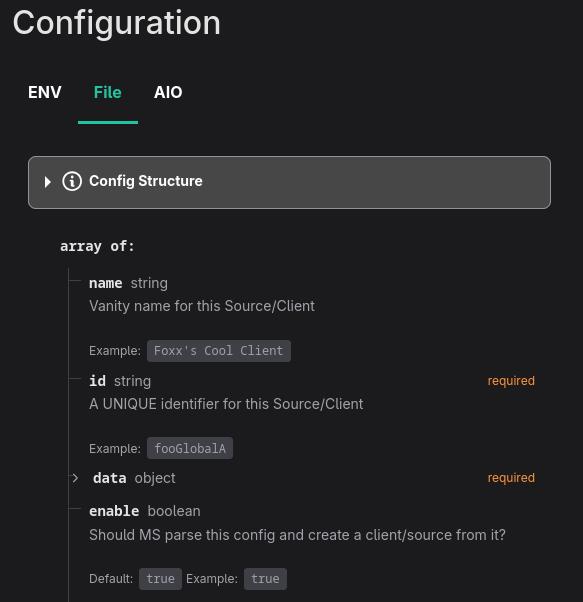
This is the Config Structure for a Client. It indicates that each object representing one config for this Client, in an array, can contain:
- a string property named
name - a boolean property named
enable
and it must contain (based on required indicator):
- a string property name
id - an object named
data
A JSON object representing this structure (and thus a valid config) would look like this:
[ { "name": "MyClientName", "id": "aUnqiueId", "data": {} }]The right-hand (or bottom) Config Example is a valid example of the Source/Client config that matches what is shown in the Config Structure.
You can use this as a starting point for your configuration. Use the Interative mode to edit the example in-place.
Example
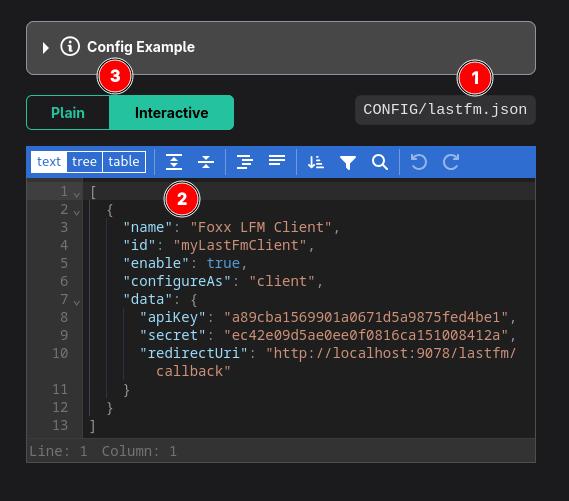
(1) shows the name of the file this example content would go in. (2) Is the example config that is valid based on the Config Structure. Use (3) to switch between interactive and plain example mode.
Config Playground
Section titled “Config Playground”The Config Playground contains the same Config Structure for AIO config seen any all Sources/Clients but it has a “full” config example loaded into the Config Example component. You can use this page to edit and build your AIO config in the browser.
Getting Configuration Help
Section titled “Getting Configuration Help”If you need help with writing a configuration (other than basic JSON questions), feel free to start a Q&A discussion to get help!
Alternatively, ask an LLM (AI). This documentation site is well-indexed by all search engines and with the thorough documentation here, most LLMs can write a good starting point configuration file for you if you just ask and point them to the main URL.
Getting Useful Data
Section titled “Getting Useful Data”Multi-scrobbeler has a real-time log that is accessible from anywhere in the app. These are the same logs you would find in docker logs. Use the Terminal icon in the top-right of the app to open the floating log window.
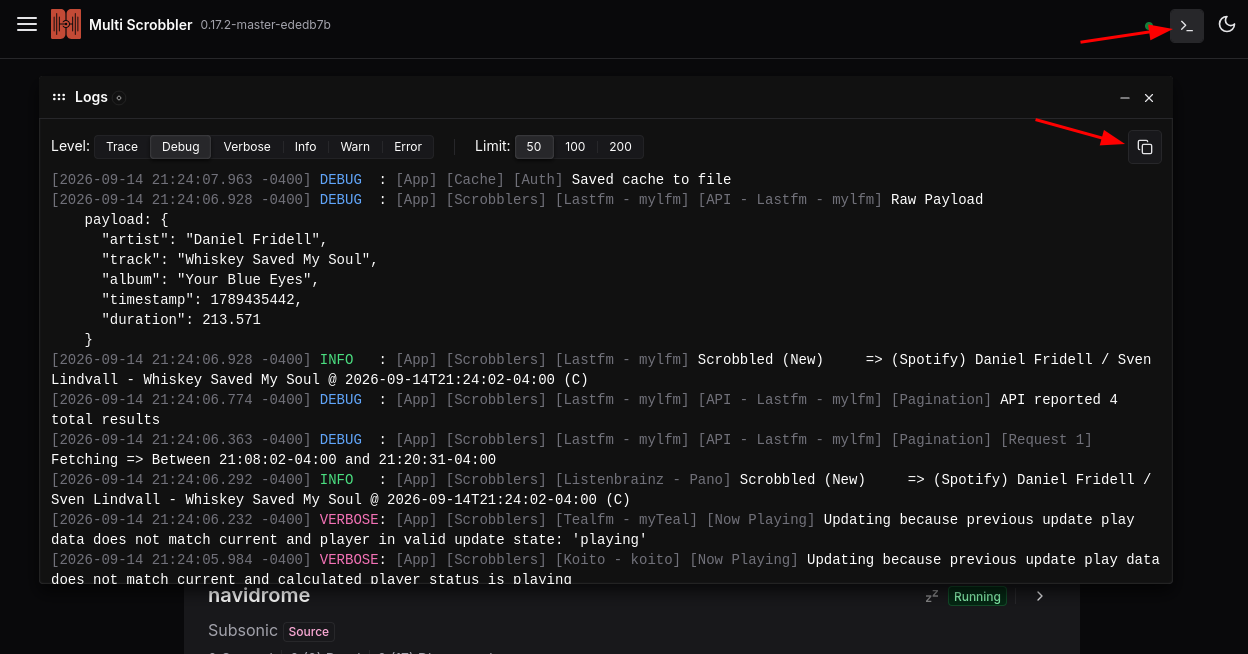
The Copy icon in the top-right of the log window will copy all logs to your clipboard. Alternatively, you can select and copy any logs.
When creating an issue please include all logs at the lowest Level possible (TRACE) to help provide context for your issue. You should try to include logs that occurred before and after your issue/error occurs as this can help determine if MS was behaving normally.
Debug Mode
Section titled “Debug Mode”If possible, turn on Debug Mode and replicate your issue. Debug Mode enables much more logging that can reveal additional data for troubleshooting.
This mode will make your logs very noisy, though, so it’s recommended to turn it off after collecting logs.
Copy Play Debug Data
Section titled “Copy Play Debug Data”Open the details page for the Source/Client experiencing an issue. Then, search or scroll to find the Play/Scrobble that where the problem is occurring.
Click on the Debug icon to copy debugging data relevant to that Play. This data should be included in any issue you create.
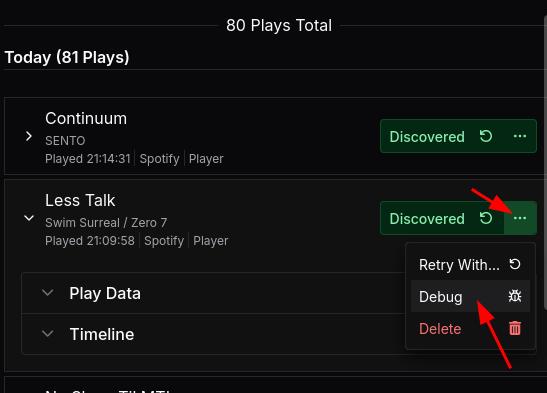
To include this data in an issue either paste the copied data into a text file and save as debugdata.json, attaching to the issue.
Or directly paste the copied data into an issue/comment using fenced code blocks markdown to preserve the structure like:
This is the contents of my comment/issue text on github.
I am explaining my issue here. Here is the debug data:
```json{  "input": {    "aProperty: 123,    "foo": "bar"  }}```
Thank you for your time.
Copy Error Data
Section titled “Copy Error Data”If the issue is occurring with a Source/Client itself, or there is an Error/Warning available, click the icon shown below to copy the error data to your clipboard.
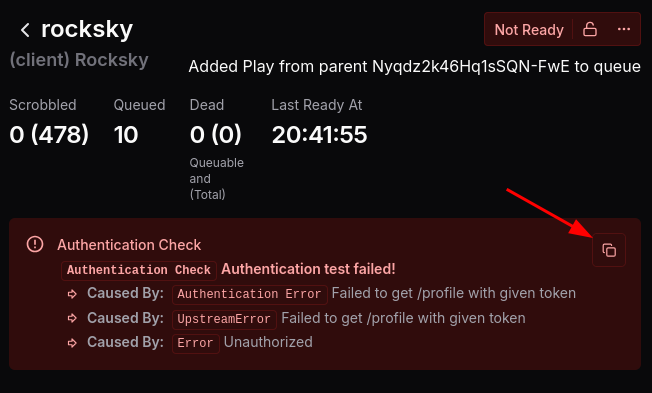
Include this in your issue using the code blocks, like shown in the Debug Data section above:
{ "name": "Authentication Check", "message": "Authentication test failed!", "stack": "Authentication Check: Authentication test failed!\n..."}Finding Help
Section titled “Finding Help”Check the FAQ to see if your issue is a known issue or a commonly-experienced issue with Multi-Scrobbler. The FAQ also includes fixes or ways to help troubleshoot these common issues.
Existing Issues
Section titled “Existing Issues”On the github repository for Multi-Scrobbler, search existing issues and discussions to see if anyone else has had this issue and if it has already been solved.
Reporting an Issue
Section titled “Reporting an Issue”Before reporting an issue please consider:
- If this a how-do-I question, troublehooting, or generally not a bug/error with multi-scrobbler please consider starting a discussion instead of opening an issue
- If you want to request new functionality use the Feature Request issue template
- If you want to request a new Source/Client implementation use the New Source/Client issue template
If none of the above apply to you then create a new bug report. Please include all logs and play debug data relevant to your issue. The more logs the better. If possible, replicate the issue with debug mode turned on.